
Home › Part numbering
Part numbering and naming in SOLIDWORKS
Files such as “Part1” or “Copy of Shaft” in the assembly tree are renamed with your numbering scheme and moved to the right project folder; assemblies and drawings point to the new files.
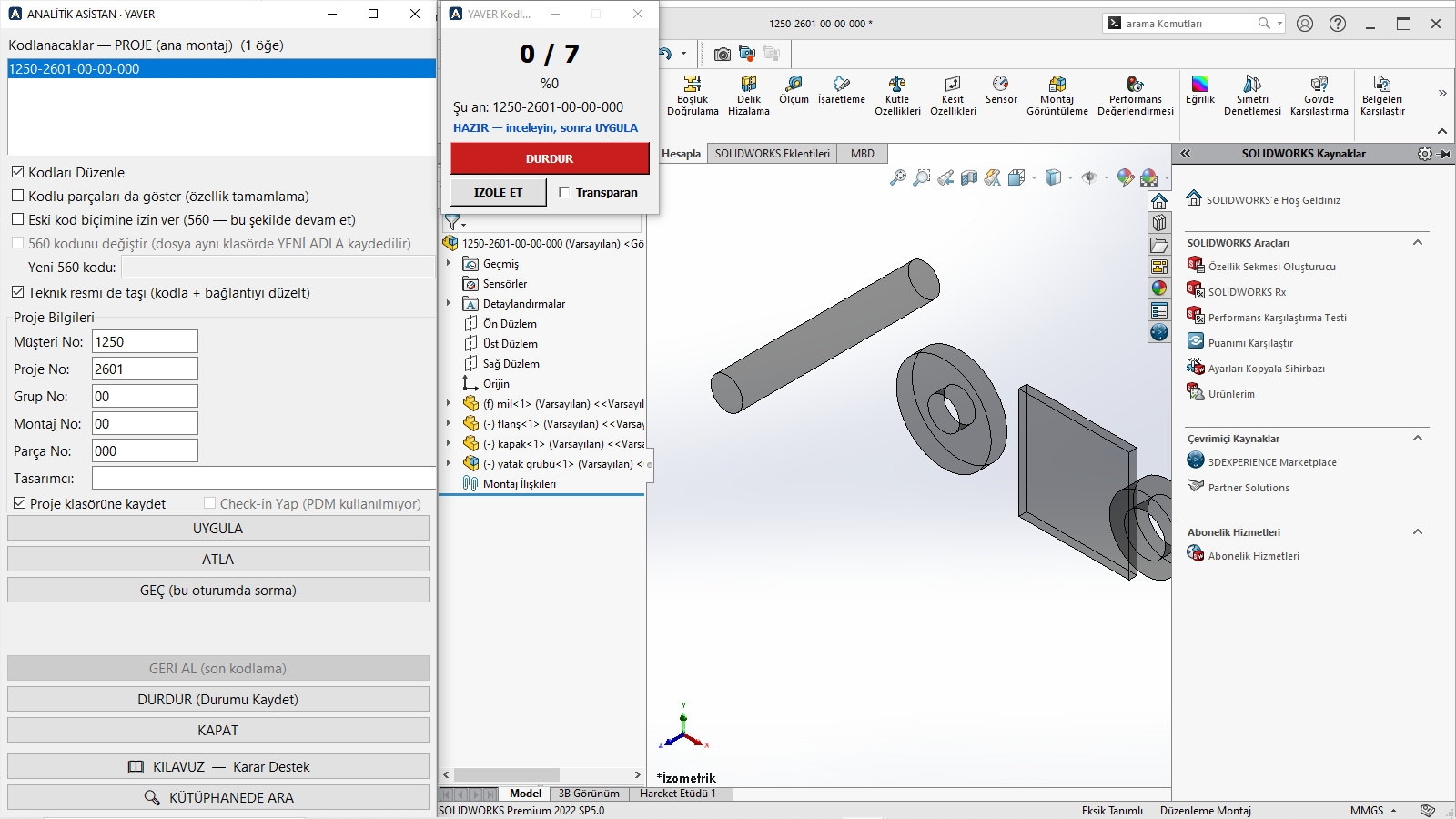
YAVER: number the tree step by step
- Starts from the top assembly, walks the tree and brings each part, sub-assembly or group with a missing number or data to you in turn.
- The number comes from your scheme: customer and project are read from the top assembly, the part number is the next free one.
- UYGULA (apply) saves the file under its number in the right folder, writes the custom properties, repoints the assembly to the new file, moves the drawing and creates its QR code.
- Standard and purchased parts are replaced with their library counterparts.
- GEÇ, ATLA and GERİ AL (skip, pass, undo the last step); an interrupted job resumes where it stopped.
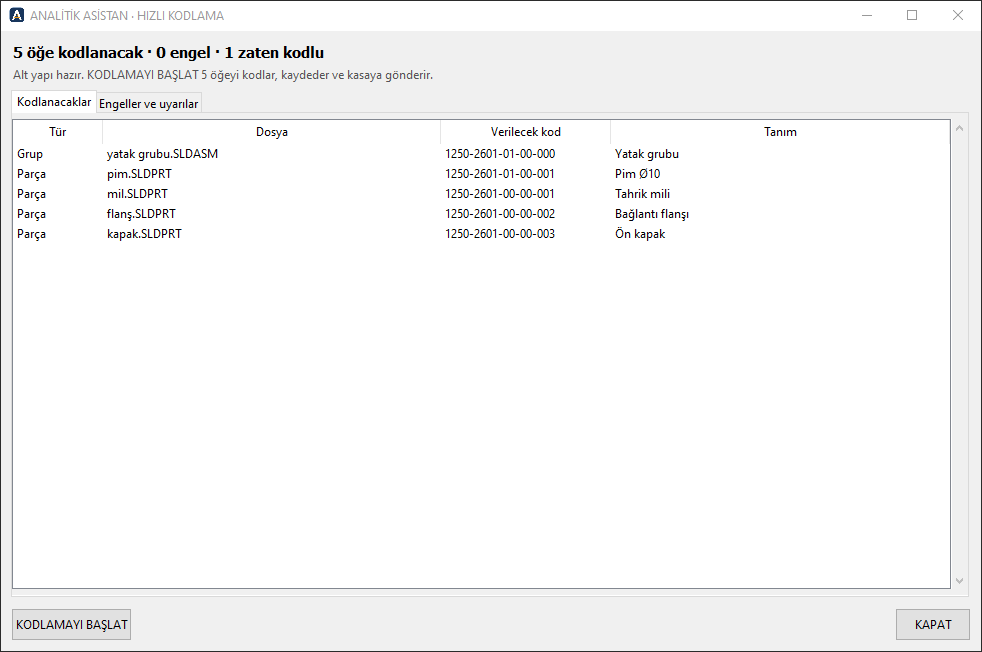
HIZLI KODLAMA: a ready tree in one go
- Numbers a whole project tree in one operation when the data is already in the model.
- Shows the plan first: which file gets which number. If anything blocks, no file is touched and the blockers are listed on a separate tab.
- After every step the changed documents are verified on disk.
- Files left with old names after numbering go to the Recycle Bin with your confirmation.
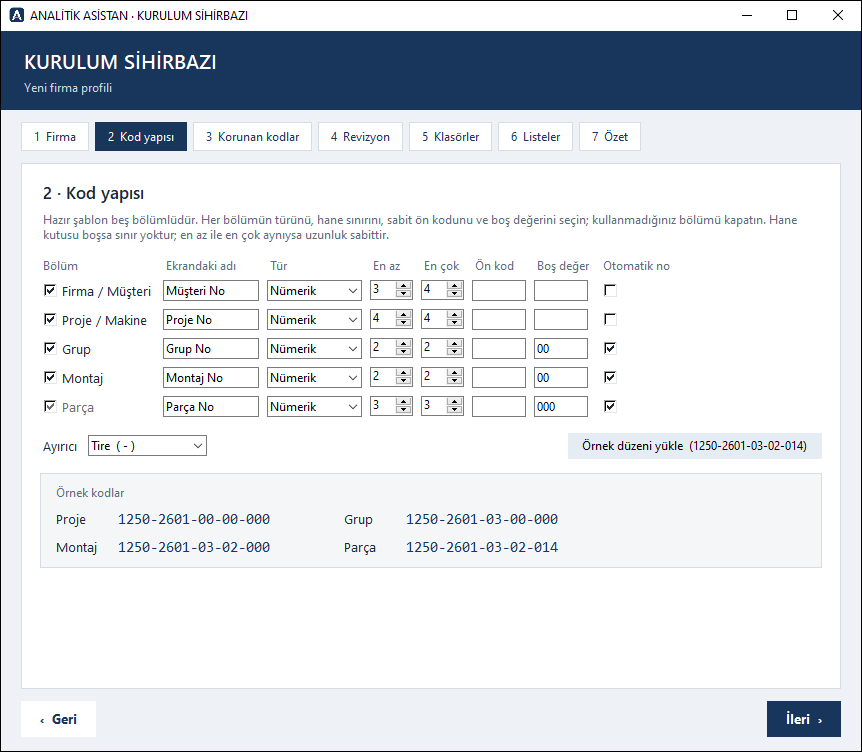
Your numbering scheme
- A five-section template in the setup wizard: company/customer, project/machine, group, assembly, part. Type (letters, digits), length, fixed prefix and empty value of each section are your choice; so is the separator.
- Machines whose numbers must never change are marked as “protected”.
- MEKANİKÇİ opens a new part already numbered and with its properties filled.
After numbering: checking and correcting
- ANALİZ checks the whole tree of the top assembly and produces a colour-coded Excel report; it writes to no file.
- A part with empty coating, paint and heat-treatment fields shows in ANALİZ as a warning; a part that needs no treatment is marked “Gerekmiyor” (not required) and shows green in ANALİZ.
- TAMİR closes the gaps ANALİZ found from a single screen.
- KATİP corrects all custom properties of released parts in bulk (protected fields such as number, weight and material stay locked), removes properties outside the scheme, moves old-named properties to the right name and regenerates the PDFs.
- KATİP's property table can also be corrected in Excel: protected fields stay locked, material and list fields become drop-downs; when the file is read back, only the changed cells are shown in a preview, and the ones you confirm are applied under KATİP's rules.
- ARAÇLAR (tools): show file in folder, where used, file info, assembly diagram.
- HAMMADDE ÖLÇÜSÜ (raw material size, in ARAÇLAR): the bounding box of a part or of all parts in an assembly is measured and written in bulk — Ø×length for round parts, a box otherwise; machining allowance and rounding from your settings.
Video: YAVER
An assembly tree without part numbers is coded step by step: top assembly, sub-assembly, parts (60 s, Turkish voice-over).
Try it free for 30 days
All modules enabled. Interface and user guide in English or Turkish.
Download demo
or write to: iletisim@analitikasistan.com